
WordPress websites face over 90,000 attacks per minute, making security a critical concern for every site owner. This step-by-step guide helps WordPress beginners, small business owners, and bloggers protect their websites from hackers and malicious attacks.
WordPress security doesn’t have to be overwhelming. With the right approach, you can build multiple layers of protection that keep cybercriminals at bay while maintaining your site’s performance and user experience.
We’ll walk you through essential WordPress security fundamentals, starting with keeping your core files and plugins updated to close vulnerability gaps. You’ll also learn how to implement strong authentication measures like two-factor authentication and secure passwords that make your login virtually bulletproof. Finally, we’ll cover choosing reliable hosting with SSL protection and installing the right security plugins to monitor threats in real-time.
Update WordPress Core and Components Regularly for WordPress Security
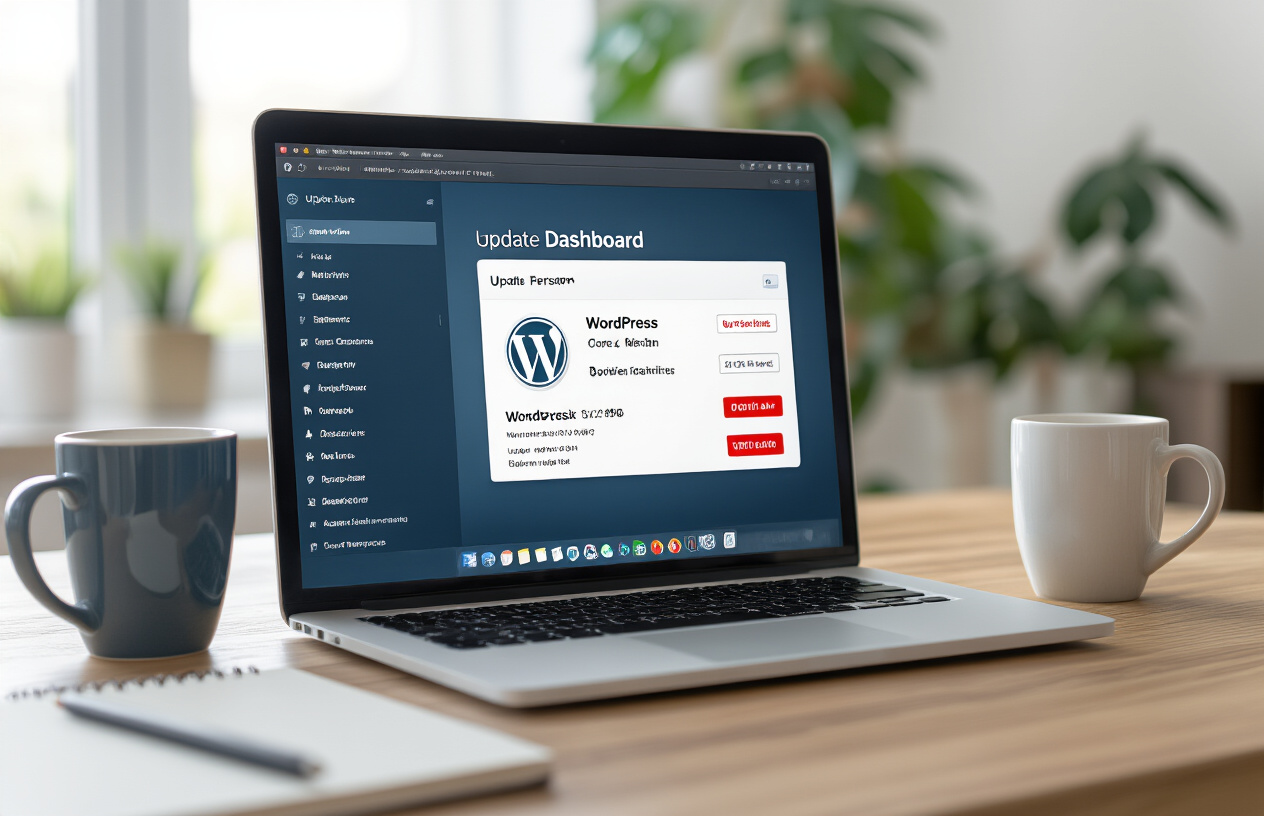
Keep WordPress Core Files Current with Latest Security Patches
WordPress releases regular updates that patch security vulnerabilities, fix bugs, and improve performance. Outdated WordPress installations are prime targets for hackers who exploit known vulnerabilities in older versions. Every week that passes without updating increases your risk exponentially.
Security patches typically address critical flaws like SQL injection vulnerabilities, cross-site scripting (XSS) attacks, and authentication bypasses. When WordPress developers discover these issues, they work quickly to release fixes, but the protection only works if you actually install the updates.
Check your WordPress version by navigating to your admin dashboard and looking at the bottom right corner or going to Dashboard > Updates. If you see an available update notification, don’t delay – schedule the update during low-traffic hours to minimize any potential disruption.
Before updating, always create a complete backup of your website files and database. Most quality hosting providers offer one-click backup tools, or you can use plugins like UpdraftPlus or BackupBuddy to automate this process.
Update All Plugins to Their Newest Versions
Plugins extend WordPress functionality but also create additional entry points for attackers. Each plugin you install adds code that hackers can potentially exploit. Outdated plugins are responsible for roughly 60% of all WordPress security breaches.
Popular plugins like contact forms, SEO tools, and e-commerce solutions are frequent targets because they’re widely used and often contain complex code. Even well-maintained plugins occasionally have security flaws that require immediate patching.
Review your plugin list regularly and remove any plugins you’re not actively using. Every inactive plugin still poses a security risk if it contains vulnerabilities. For plugins you keep, establish a weekly update routine:
- Check the Plugins page in your WordPress admin for update notifications
- Read plugin changelogs to understand what each update addresses
- Test updates on a staging site first if possible
- Monitor your site after updates to ensure everything works correctly
Some plugin developers release emergency security patches outside their normal update schedule. Subscribe to security blogs like WPScan or Wordfence to stay informed about critical vulnerabilities affecting popular plugins.
Upgrade Themes to Eliminate Known Vulnerabilities
WordPress themes control your site’s appearance and functionality, but they can also harbor security vulnerabilities. Theme files have access to your database and can execute PHP code, making them attractive targets for malicious attacks.
Free themes from unknown developers pose higher risks because they often lack proper security reviews and ongoing maintenance. Some malicious actors deliberately create themes with backdoors or hidden malware. Stick to themes from reputable developers or the official WordPress repository.
Premium themes typically receive better security support, but they’re not immune to vulnerabilities. Popular themes like Avada, Divi, or Elementor occasionally require security updates due to newly discovered flaws.
When updating themes, be aware that customizations might be lost if you’ve modified theme files directly. Use child themes for customizations to preserve your changes during updates. If you’ve made direct modifications to a parent theme, document these changes and re-apply them after updating.
Enable Automatic Updates for Critical Security Fixes
WordPress includes automatic update functionality for minor releases and security patches. This feature runs in the background and applies critical security fixes without requiring manual intervention. While some website owners worry about automatic updates breaking their sites, the security benefits usually outweigh the risks.
You can configure different levels of automatic updates:
| Update Type | Risk Level | Recommendation |
|---|---|---|
| Core security patches | Low | Enable always |
| Minor core updates | Low | Enable for most sites |
| Major core updates | Medium | Manual review recommended |
| Plugin updates | Variable | Enable selectively |
| Theme updates | Medium | Manual review preferred |
To enable automatic updates for WordPress core security fixes, add this code to your wp-config.php file:
define( 'WP_AUTO_UPDATE_CORE', 'minor' );
For plugin automatic updates, you can enable them individually from your plugins page or use a security plugin to manage update policies more granularly. Consider enabling automatic updates for well-established plugins from trusted developers, but exercise caution with newer or less popular plugins.
Set up email notifications for automatic updates so you know when they occur. Most WordPress installations automatically send emails when core updates are applied, but you can configure additional notifications for plugin and theme updates using security plugins or custom code.
Regular monitoring after automatic updates helps catch any issues quickly. Check your site’s front-end and admin areas weekly to ensure everything functions properly after updates are applied.
Implement Strong Authentication Measures
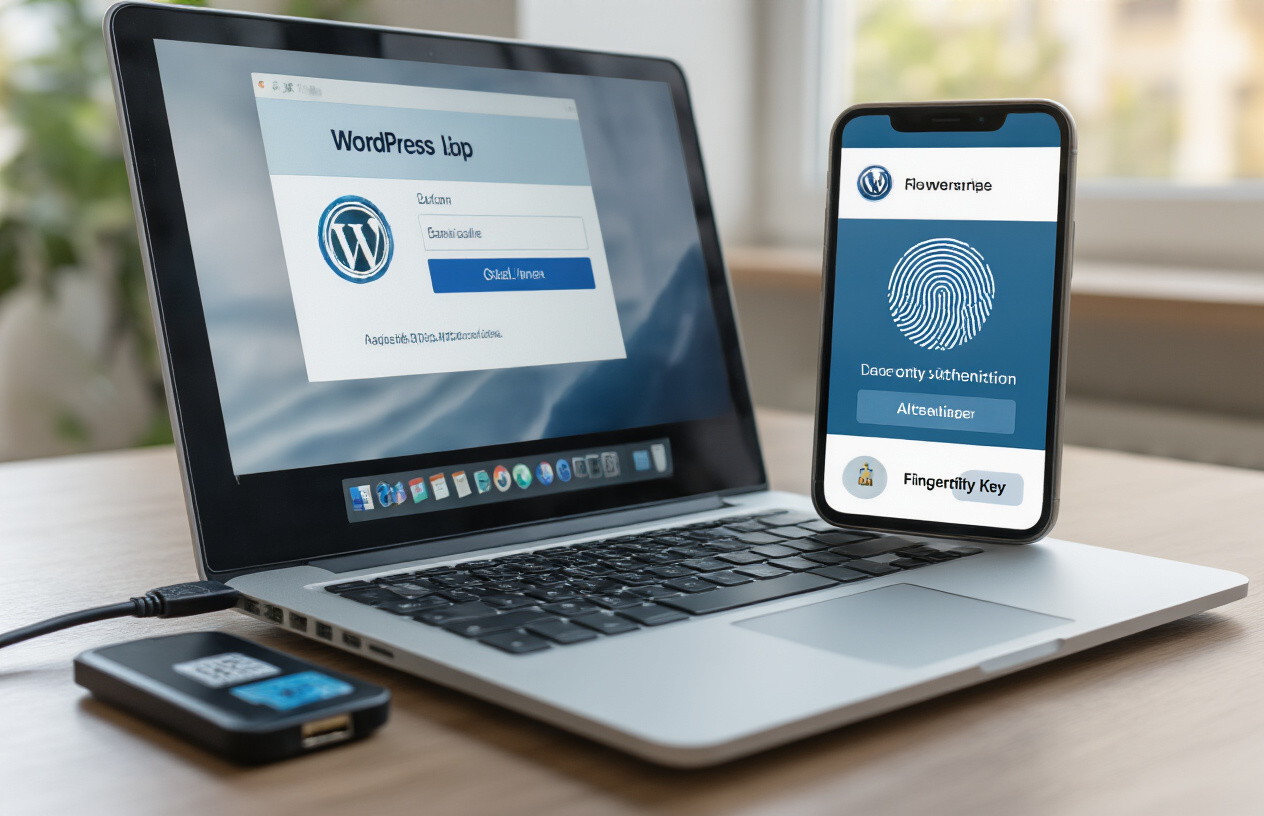
Create complex passwords with special characters and numbers
Strong passwords are your first line of defense against hackers trying to break into your WordPress site. A weak password is like leaving your front door unlocked – it’s an open invitation for trouble. You need passwords that are at least 12 characters long and include a mix of uppercase letters, lowercase letters, numbers, and special characters.
Think of passwords as unique fingerprints for your accounts. Each one should be completely different and impossible to guess. Avoid using personal information like birthdays, pet names, or common words that hackers can easily figure out. Instead, create passwords that look random but are memorable to you.
Here’s a simple method for creating strong passwords: take a sentence you’ll remember, then transform it. For example, “My favorite coffee shop opens at 7am!” becomes “Mf$oA7!” when you use the first letter of each word, replace “shop” with “$”, and keep the numbers and punctuation.
Password managers make this whole process much easier. Tools like LastPass, 1Password, or Bitwarden can generate complex passwords for you and store them securely. You only need to remember one master password, and the manager handles everything else.
Change default admin username from “admin” to unique identifier
WordPress sites come with “admin” as the default username, and every hacker knows this. Using this default username makes their job incredibly easy because they only need to guess your password instead of both your username and password. It’s like wearing a name tag that says “Rob me!”
Changing your admin username creates an extra layer of security that many website owners overlook. When hackers try automated attacks against WordPress sites, they typically start by targeting accounts named “admin”. If your site doesn’t have that username, their automated tools will fail right from the start.
If you already have an “admin” account, you’ll need to create a new administrator account with a different username, then delete the old one. Choose something unique that doesn’t obviously relate to you or your business. Avoid usernames like your domain name, business name, or your actual name.
Make your new username unpredictable but memorable. You could combine random words, add numbers, or use a completely made-up name. The goal is to make it something only you would know, not something hackers could guess by looking at your website or social media.
Enable two-factor authentication for all user accounts
Two-factor authentication (2FA) adds a second security checkpoint that dramatically improves your WordPress security. Even if hackers manage to steal your password, they still can’t access your account without the second factor – usually a code sent to your phone or generated by an app.
Setting up 2FA is easier than most people think. You can use plugins like Google Authenticator, Authy, or Wordfence to add this protection to your WordPress site. These tools generate time-sensitive codes that change every 30 seconds, making it nearly impossible for hackers to break in.
The most common 2FA method involves downloading an authenticator app on your smartphone. When you log in to your WordPress dashboard, you’ll enter your regular password, then open the app to get a six-digit code. This code proves that you have physical access to your phone, not just your password.
Don’t limit 2FA to just admin accounts. Enable it for all users who have access to your WordPress dashboard, including editors, authors, and contributors. The more accounts you protect, the fewer opportunities hackers have to find their way in.
Limit login attempts to prevent brute force attacks
Brute force attacks happen when hackers use automated tools to guess your login credentials by trying thousands of password combinations. Without protection, they can make unlimited attempts until they eventually get lucky. Login limiting stops these attacks by blocking users after a certain number of failed attempts.
Most security plugins include login limiting features that you can customize based on your needs. You might allow three failed attempts before triggering a temporary lockout, then increase the lockout time for repeat offenders. Some plugins can even permanently ban IP addresses that show suspicious behavior.
The lockout periods create a significant roadblock for automated attacks. While legitimate users might occasionally mistype their password, hackers’ bots rely on rapid-fire attempts. When they hit your login limits, their attacks become impractical and they usually move on to easier targets.
You can also set up email notifications for failed login attempts, so you’ll know when someone is trying to break into your site. This early warning system helps you spot potential security threats and take additional protective measures if needed.
Choose Reliable Hosting and SSL Protection for WordPress Security

Select hosting provider with robust security features
Your hosting provider forms the foundation of your WordPress security strategy. A reliable host implements multiple layers of protection that serve as your first line of defense against malicious attacks. Look for providers that offer server-level firewalls, intrusion detection systems, and regular security monitoring as standard features.
When evaluating hosting options, prioritize providers that maintain up-to-date server software and operating systems. Outdated server environments create vulnerabilities that hackers actively exploit. Quality hosts also provide automatic malware scanning and removal services, which can catch threats before they compromise your site.
Consider managed WordPress hosting if your budget allows. These specialized services focus exclusively on WordPress security, offering features like automatic updates, staging environments for safe testing, and expert WordPress support teams. Many managed hosts also implement advanced caching and CDN integration, which can help mitigate DDoS attacks while improving site performance.
Install SSL certificate for encrypted data transmission
SSL certificates encrypt data traveling between your website and visitors’ browsers, protecting sensitive information from interception. Modern browsers flag non-SSL sites as “not secure,” which damages user trust and search engine rankings. Most hosting providers now include free SSL certificates through Let’s Encrypt, making this protection accessible for every website.
The installation process varies by hosting provider, but many offer one-click SSL activation through their control panels. After installation, verify that your SSL certificate works correctly by checking for the padlock icon in your browser’s address bar. You should also update your WordPress settings to use HTTPS URLs and implement 301 redirects to automatically send HTTP traffic to the secure HTTPS version of your site.
For e-commerce sites or those handling sensitive customer data, consider upgrading to Extended Validation (EV) SSL certificates. These provide additional verification and display your company name in the browser’s address bar, offering extra credibility and trust signals to visitors.
Configure secure file permissions on server
Proper file permissions prevent unauthorized access to your WordPress files and directories. WordPress requires specific permission settings to function correctly while maintaining security. Files should typically use 644 permissions, while directories need 755 permissions. Your wp-config.php file, which contains sensitive database credentials, should have 600 permissions for maximum protection.
Many hosting providers set these permissions correctly by default, but you should verify them manually. Access your server through FTP or your hosting control panel’s file manager to check and modify permissions as needed. Avoid using 777 permissions, which grant full access to everyone and create serious security vulnerabilities.
Some hosts provide automated tools for setting WordPress file permissions correctly. These tools scan your installation and apply the appropriate permissions to all files and folders, saving time and reducing the risk of human error.
Enable regular automated backups
Automated backups serve as your safety net when security breaches occur. Configure your hosting provider’s backup system to create daily backups of both your website files and database. Store these backups in multiple locations, including off-site storage, to protect against server failures or widespread attacks.
Most quality hosting providers include automated backup services, but verify that your plan includes adequate backup frequency and retention periods. Daily backups with at least 30 days of retention provide good protection for most websites. High-traffic sites or those with frequent content updates may benefit from more frequent backup schedules.
Test your backup restoration process regularly to ensure backups work when needed. Many website owners discover their backups are corrupted or incomplete only when attempting to restore after an attack. Schedule quarterly restore tests using a staging environment to verify backup integrity without affecting your live site.
Install Essential Security Plugins for WordPress Security
Add comprehensive security scanner plugin for WordPress Security
Security scanner plugins act as your website’s digital bodyguards, constantly checking for vulnerabilities and threats. These tools run comprehensive scans that examine your files, database, and code for signs of malicious activity or security weaknesses.
Wordfence Security stands out as one of the most trusted WordPress security solutions. This plugin offers real-time threat detection, scanning over 50,000 malicious IP addresses and URLs daily. The scanning engine checks for malware, backdoors, SEO spam, and code injections that could compromise your site’s integrity.
Sucuri Security provides another excellent option with its cloud-based scanning technology. The plugin monitors your website 24/7 and sends instant alerts when suspicious activity occurs. Its database includes millions of known malware signatures, making detection incredibly accurate.
When configuring your security scanner, schedule automatic scans to run daily during low-traffic hours. Enable email notifications so you receive immediate alerts about potential threats. Most quality scanners allow you to customize scan depth – choose comprehensive scans that examine all files, not just core WordPress files.
The scanner should also check file integrity by comparing your current files against clean versions. Any unauthorized changes trigger alerts, helping you catch problems before they escalate. Look for plugins that scan themes and plugins separately, as these are common entry points for attackers.
Configure firewall protection to block malicious traffic
Website firewalls create a protective barrier between your site and potential attackers. They filter incoming traffic and block requests that match known attack patterns, preventing malicious visitors from even reaching your server.
WordPress security firewalls operate at different levels. Application-level firewalls analyze HTTP requests and block those containing suspicious code or patterns. Network-level firewalls examine IP addresses and block traffic from known malicious sources.
Popular firewall plugins like Wordfence include both capabilities. The application firewall inspects form submissions, URL requests, and file uploads for malicious content. It blocks common attack vectors like SQL injection attempts, cross-site scripting (XSS), and brute force login attempts automatically.
Configure your firewall to block traffic from countries where you don’t do business. This simple step eliminates a significant portion of automated attacks. Set up rate limiting to prevent rapid-fire requests that indicate bot activity.
The firewall should also implement geoblocking features, allowing you to restrict access based on geographic location. Enable real-time IP blacklisting that automatically blocks addresses showing suspicious behavior patterns.
Custom firewall rules let you block specific types of requests. Create rules that prevent access to sensitive files like wp-config.php or block requests containing suspicious parameters. Advanced firewalls can even analyze user behavior patterns to identify potential threats.
Set up malware detection and removal tools for WordPress Security
Malware detection goes beyond basic scanning to identify sophisticated threats that might slip past traditional security measures. Modern malware often disguises itself within legitimate code, making detection challenging without specialized tools.
Install plugins that offer behavioral analysis capabilities. These tools monitor how your website functions and identify unusual activities that might indicate malware presence. They track file changes, database modifications, and unexpected network connections.
MalCare and Sucuri offer powerful malware removal services that combine automated detection with human expertise. Their scanning engines use machine learning algorithms to identify new malware variants that haven’t been cataloged yet.
Set up file integrity monitoring that creates checksums of your important files. Any unauthorized changes trigger immediate alerts. This feature helps catch malware that modifies existing files rather than creating new ones.
Configure your detection tools to monitor outbound connections. Malware often tries to communicate with external servers to download additional payloads or send stolen data. Blocking these connections can prevent further damage.
Enable quarantine features that automatically isolate suspected malicious files. This prevents the malware from executing while allowing you to investigate and remove threats safely. The best tools also create backups before making any changes, ensuring you can restore your site if something goes wrong.
Regular malware signature updates keep your detection tools current with the latest threats. Choose plugins that update their databases multiple times daily to stay ahead of evolving attack methods.
Secure Database and File Structure for WordPress Security

Change Default Database Table Prefix from “wp_” for WordPress Security
WordPress assigns “wp_” as the default table prefix during installation, which creates a major security vulnerability. Hackers know this standard convention and can easily target your database tables using automated scripts. Changing this prefix adds a crucial layer of protection to your WordPress security strategy.
When you modify the table prefix, you’re essentially disguising your database structure from malicious bots that scan websites looking for standard WordPress configurations. Pick something unique like “mysite_2024_” or “blog_secure_” instead of the predictable default.
To change the prefix on an existing site, you’ll need to update the wp-config.php file first. Look for the line $table_prefix = 'wp_'; and replace “wp_” with your chosen prefix. After saving the file, use phpMyAdmin or your hosting control panel to rename all existing database tables to match the new prefix.
Warning: Always backup your database before making these changes. One wrong move could break your entire website.
Hide wp-config.php File from Public Access
The wp-config.php file contains your website’s most sensitive information, including database credentials, security keys, and other critical configuration data. By default, this file sits in your WordPress root directory where it could potentially be accessed by attackers.
Move your wp-config.php file one directory level above your WordPress installation. WordPress automatically looks for this file in the parent directory if it doesn’t find it in the root folder. This simple relocation makes the file much harder for hackers to reach.
You can also add extra protection by placing a .htaccess rule that explicitly denies access to the file:
<files wp-config.php>
order allow,deny
deny from all
</files>
Some hosting providers offer additional server-level protection for this file, but don’t rely solely on their measures. Taking personal responsibility for securing your configuration file gives you better control over your WordPress security.
Disable File Editing Through WordPress Dashboard
WordPress includes a built-in file editor that lets you modify theme and plugin files directly from the admin dashboard. While convenient for quick fixes, this feature creates a massive security risk. If hackers gain access to your admin area, they can inject malicious code directly into your website files.
Add this line to your wp-config.php file to completely disable the file editor:
define('DISALLOW_FILE_EDIT', true);
This single line of code removes the editor from your dashboard entirely, eliminating the risk of unauthorized code injection through the admin interface. Professional developers rarely use the built-in editor anyway, preferring FTP or staging environments for file modifications.
Remove Unnecessary Files and Folders for WordPress Security
WordPress installations often contain files and folders that serve no purpose in production environments but create potential security vulnerabilities. The readme.html file, for example, displays your WordPress version number to anyone who visits yoursite.com/readme.html, giving hackers valuable information about potential vulnerabilities.
Delete these files immediately after installation:
readme.htmllicense.txtwp-config-sample.php- Any unused themes and plugins
Check your /wp-content/uploads/ directory regularly for suspicious files. Hackers sometimes upload malicious scripts disguised as images or documents. Set proper file permissions on your directories: 755 for folders and 644 for files prevents unauthorized modifications while maintaining functionality.
Consider removing the WordPress version number from your site’s meta tags and RSS feeds. Add this code to your theme’s functions.php file:
remove_action('wp_head', 'wp_generator');
Every unnecessary file you eliminate reduces your website’s attack surface, making it harder for hackers to find entry points into your system.
Monitor and Maintain Website Security
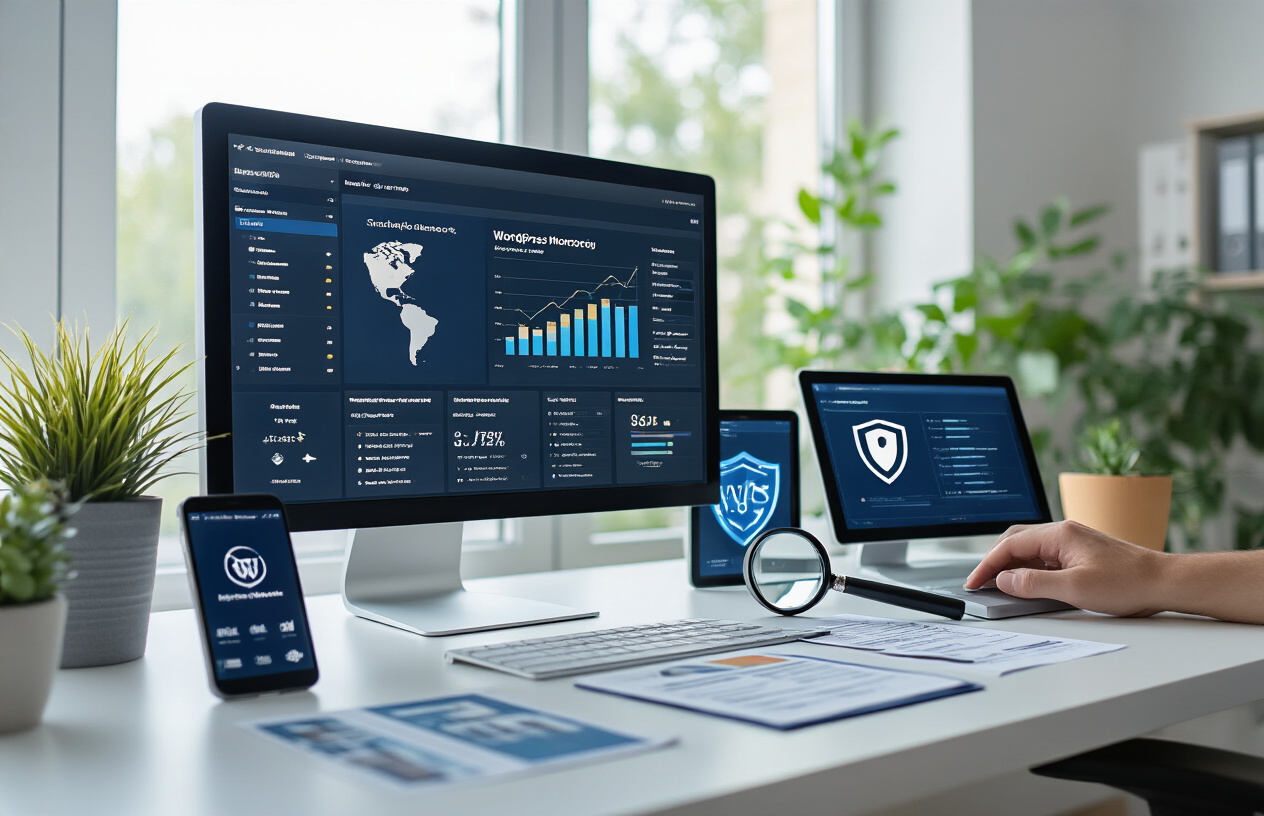
Scan for malware and vulnerabilities weekly for WordPress Security
Running regular security scans keeps your WordPress site protected from hidden threats that could compromise your website’s integrity. Weekly scans help catch problems early, before they can cause serious damage to your site or steal sensitive information.
Choose automated scanning tools that check for malware, backdoors, and known vulnerabilities. Many WordPress security plugins offer this feature, scanning your files, database, and core WordPress installation for suspicious code or unauthorized changes. Set up these scans to run automatically every week, preferably during low-traffic periods to avoid affecting site performance.
Pay special attention to file integrity monitoring, which alerts you when core WordPress files have been modified unexpectedly. This early warning system helps detect compromise attempts before they fully succeed. Review scan results promptly and investigate any flagged items, even if they seem minor.
Consider using multiple scanning methods for comprehensive coverage. External scanners can spot issues that internal tools might miss, while internal scans provide deeper access to your file system. Popular options include Sucuri, Wordfence, and MalCare, each offering different strengths in malware detection and removal.
Review user accounts and remove inactive users for WordPress Security
User account management plays a crucial role in maintaining WordPress security. Regularly audit your user list to identify accounts that no longer need access to your website. Inactive or unnecessary user accounts create potential entry points for attackers who might compromise old credentials. Contact us for any questions or assistance you may need
Start by reviewing all user roles and permissions monthly. Remove users who have left your organization or no longer require access. Downgrade permissions for users whose responsibilities have changed, following the principle of least privilege. An editor who now only writes content shouldn’t retain administrative access.
Check for suspicious user accounts that you don’t recognize. Look for usernames with random characters, generic names like “admin” or “user,” or accounts created on dates when you weren’t adding legitimate users. These could indicate successful intrusion attempts.
Update your user management policy to include regular cleanup procedures. Document who has access, why they need it, and when to review their permissions. This systematic approach prevents account accumulation and reduces your attack surface significantly.
Check security logs for suspicious activity
Security logs provide valuable insights into attempted attacks and actual security breaches. Regular log analysis helps you understand your site’s threat landscape and respond quickly to potential issues.
Most WordPress security plugins maintain detailed logs of login attempts, file changes, and suspicious activities. Review these logs weekly, looking for patterns like repeated failed login attempts from specific IP addresses, unusual file modifications, or access attempts during off-hours.
Focus on these key indicators:
- Multiple failed login attempts from the same IP
- Successful logins from unfamiliar locations
- File uploads to unexpected directories
- Database queries that seem unusual
- 404 errors for admin or sensitive files
Set up alerts for critical security events so you can respond immediately to potential threats. Many security plugins allow customizable notifications for specific types of activities, helping you balance awareness with alert fatigue.
Keep logs for at least 30 days to identify trends and investigate incidents thoroughly. Longer retention periods help with forensic analysis if you discover a breach weeks after it occurred.
Test website backups for successful restoration
Creating backups means nothing if you can’t restore them when needed. Regular backup testing ensures your recovery process works correctly and your data remains intact and accessible during emergencies.
Schedule monthly restoration tests using a staging environment or separate server. Download your backup files and attempt a complete site restoration, checking that all functionality works properly. Verify that your database, media files, themes, and plugins all restore correctly.
Test different backup types if you use multiple backup solutions. Database-only backups restore differently than full-site backups, and each method might have unique requirements or limitations. Practice restoring specific components like individual posts or user data to prepare for partial recovery scenarios.
Document your restoration process step-by-step, including any special requirements or common issues you encounter. This documentation becomes invaluable during actual emergencies when stress and time pressure might cause you to forget important details.
Store backup test results and update your backup strategy based on what you learn. If certain files consistently fail to restore or if the process takes too long, adjust your backup configuration or consider alternative solutions that better meet your recovery time objectives.
Conclusion
Your WordPress website doesn’t have to be an easy target for hackers. By keeping your core software and plugins updated, setting up strong passwords with two-factor authentication, and choosing a hosting provider that takes security seriously, you’re already ahead of most website owners. Adding SSL certificates and trusted security plugins creates multiple layers of protection that make cybercriminals think twice before targeting your site.
The real secret to WordPress security isn’t any single magic solution – it’s staying consistent with the basics and regularly checking your website’s health. Set aside time each month to review your security plugins, update your components, and monitor your site for any unusual activity. Your website is worth protecting, and these steps will keep it running safely while you focus on what matters most: creating great content and growing your business. Contact us for any questions or assistance you may need
Thank you for the detailed explanation on how to secure your WordPress website. With this article, I can confidently secure my WordPress website.
I am into search engines optimization (SEO) and I can help any website rank first on Google. Give me a trial and be convinced
Thank you for your comment and your kind words. Kindly reach out to us to consider your request
Hi, I wanted to find out the price
Do you need a website or any of our services? Kindly reach out to us, let us discuss in detail
Good article and so educational contents that can save your website from hackers.
You just gained new viewer, help me promote my hotel in Russia
Thank you for your kind words and finding my article useful. Kindly reach out to me for further discussion to promote your hotel
A really good blog and me back again.
Thank you for your kind words, I appreciate you
There is war every day; I hope for peace in 2026. Nice content, I will be checking here for more
Very good i like it
Just wrapped up a cracking night session punting on crash games and have to say it hits different when you figure out when to cash out. Had a go at last night and wasn’t disappointed. Funded my account with Mastercard and saw they also have Poli which is handy. The whole crash format is genuinely exciting — you have to stay calm while also know when to eject. Unlike Lucky Jet, Aviator which are also worth a crack, crash gives you a genuine live strategy rush. Solid site for local
wish you all the best
Mass comment blasting: $10 for 100k comments. All from unique blog domains, zero duplicates. I will provide a full report and guarantee Ahrefs picks them up.If you received this, you know Ive got the skills.
wish you best and best
darkmarket list https://darknetmarketstore.com/
色即是空,空即是色
So dive in, have fun
Wrapped up a solid night session playing crash games and honestly reckon nothing beats the rush when you actually know the right time to cash out. Had a go at Vegazone casino last night and was pretty happy. Threw in cash through Visa and noticed they also have PayPal which is good to know. The crash mechanics is addictive as hell — the trick is to hold your nerve yet also know when to bail. Unlike Lucky Jet, Aviator which are also worth a crack, crash gives you that real-time strategy rush. Good setup if you’re in Oz
UFC Live Free ufc white house odds
We are a group of volunteers and starting a new scheme in our community.
Your website provided us with valuable information to work on. You have
done a formidable job and our whole community will be thankful to
you.
Thank you so much for your kind words, I am you found my website useful/helpful
Do you mind if I quote a few of your posts as long as I provide credit and
sources back to your blog? My blog is in the very
same niche as yours and my visitors would genuinely benefit from a lot
of the information you present here. Please let me know
if this okay with you. Thanks a lot!
Thank you, please, you can go ahead
Thank you so much for this educational content
Fresh off a killer gaming session playing classic crash and man the dopamine is insane when you develop the timing for when to cash out. Tested this time and thought it was najs. Funded with Visa and spotted they also accept Neosurf which is schysst. The crash multiplier chase gets your heart pumping – you have to stay disciplined and most importantly know when to eject. Unlike Mines, Plinko which are also worth trying, crash gives you that live decision-making buzz. Solid site if you’re based in Sweden
Thank you sir
Thank you the author of this content. making my website secure is because of you
If you want to play games, reply to this comment and I will share the details with you. Your winning is gauranteed
First, let me commend the writer of this great content, you are the goat ( good of all time)
Hello players, I figured to mention one thing I accidentally noticed as scrolling gaming blogs. After one late ranked session, I clicked on a random write-up about some modern online casino platform that supposedly has some kind of international operating license.
I definitely not posting this to push a casino, but being a gamer, I found the article interesting. The main thing that grabbed my interest was that the writer described the casino as international. Of course, the wording does obviously not mean that everyone can play from every region. Regional laws still count, and anyone should verify the country-specific restrictions before trying it.
Still, the concept sounded pretty interesting. The article mentioned that the site was made for players from multiple markets, with options that seem way more flexible than traditional casino sites. It wrote about fast registration, clean interface, mobile support, and several payment tools.
As a gamer, I always look at the UX first. If a site is slow, I usually close it basically immediately. The article made the website sound clean, which is a big deal because today gamers are used to fast launchers. A outdated interface can destroy even a good product.
The licensing part was also interesting. There are countless sketchy casino sites everywhere, and some of them throw around flashy statements without showing much. So when an article mentions official licensing, that at least makes me pay more attention. But again, for me, I would still verify the legal info myself before trusting anything.
The article also described casino game variety. It sounded like the site has slot games, card games, and live table games. I know gambling titles are not the same from normal gaming, but there is still some overlap in how services try to keep players engaged. Things like rewards, limited offers, and quick feedback loops are everywhere in both online entertainment.
One thing I liked in the article was that it did bring up controlled gambling. Player control is serious, because actual funds are involved. Gaming should stay fun, not become dangerous. The article listed things like account limits, pause features, and account controls. In my opinion, any professional casino platform should include those controls by default.
Another interesting part was the multi-region audience. The article made it sound like the brand is not just focused on one local market, but on different markets. That sounds useful, especially for people who travel, but it also means users need to be smart. Cross-border does not automatically mean allowed everywhere. There are usually limited locations, and those lists should be reviewed before signing up.
Very interesting read! I found this post very informative.
The topic is presented clearly, which makes the content valuable.
Thanks for taking the time to write this article. I look forward to reading more articles like this.
Wishing the author continued success!
Happy to explore discussions, exchange ideas, and gain fresh perspectives along the way.
I enjoy understanding different opinions and contributing whenever I can. Thank you
With havin so much content and articles do you ever run into any problems of plagorism or
copyright violation? My site has a lot of unique content I’ve either authored myself or outsourced but it seems a lot of it is popping it up all over the internet without my
permission. Do you know any methods to help prevent content from being
stolen? I’d truly appreciate it.
If it is a WordPress website, use this plugin “Secure Copy Content Protection” and your content won’t be stolen again but if it is html website use this code in your javascript
document.addEventListener('keydown', function(event) {

    if (event.ctrlKey && (event.key === 'c' || event.key === 'u' || event.key === 's')) {

        event.preventDefault();

    }

});
To check for content plagiarism, use this link https://www.grammarly.com/plagiarism-checker
Thank you for this information. My website will be safe now
I love this, you are good sir
Thank for this article. So helpful
Hey there just wanted to give you a quick heads up.
The words in your article seem to be running off the screen in Ie.
I’m not sure if this is a format issue or something to do with browser compatibility but I figured I’d post to let you know.
The style and design look great though! Hope you get the
problem fixed soon. Thanks
I couldn’t refrain from commenting. Very well written!
My spouse and I absolutely love your blog and find most of your post’s to
be precisely what I’m looking for. can you offer guest writers to write content for you?
I wouldn’t mind producing a post or elaborating on many of the subjects you write about here.
Again, awesome weblog!
Hello there! This post could not be written much better!
Looking at this article reminds me of my previous roommate!
He continually kept preaching about this. I am going to send
this article to him. Fairly certain he’ll have a very good read.
I appreciate you for sharing!
Thank you for sharing